IIS 7.x Web Server Installation Process
Internet Information Services (IIS) Web server v7.0 configuration with Websphere Application Server v8.5 is one of the customer requirement which i was working on.
As part of this I have to first Install IIS web server and then configure Web server with WAS.
This Blog entry will give details about IIS Web Server Installation Process,
1. On Windows Server 2008 machine, click on Start and then Click on Server Manager
2. Scroll Down to navigate to Center page where you will see Add Roles

3. Click on Add Roles
4. Click on Next
5. Select Web Server (IIS) and click on Next

6. Click on Next
7. Select Values based on the requirement and make sure that all check boxes are selected under Management. This is a mandate requirement while configuring IIS webserver with Websphere Application server. All values under Management needs to be selected.
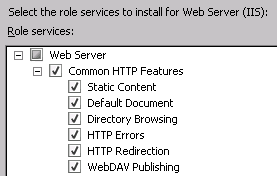
8. Click on Next and then Click on Install
9. Click on Close once Installation Successful message appears in the IIS Installation window.
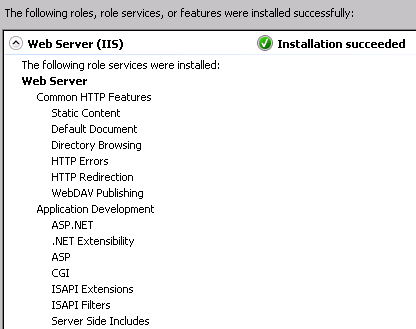
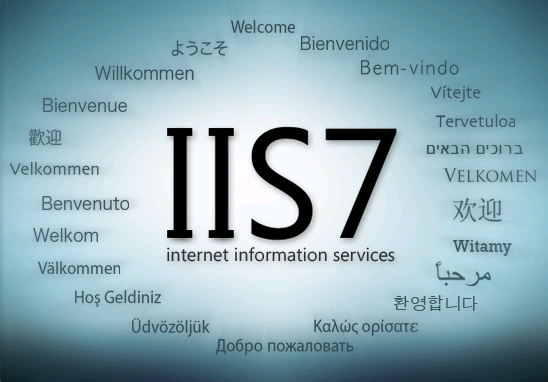
10. Enter IIS hostname in the browser and check for below screen.
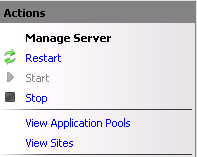
To Start/Stop IIS Web Server
1. Click on start and in search provide inetmgr
2. Click on inetmgr
3. Expand Hostname in Inetmgr
4. At Right hand side of the page, under Manage Server, Restart/Start/Stop options will be present to start/stop the IIS Web Server.