



WASServiceHelper utility in WAS v8.5
WASServiceHelper utility in WAS v8.5 can be used as a front end for WASService.exe command to add, update, or remove WebSphere Application Server services on a Windows operating system.
Customers who use Application server on Windows machines ask me regularly on how to utilize Application server instances as Windows services. WASService.exe is one command that can be used to create windows services for application server instances.
wasservicehelper.bat command is used to add, update, or remove WebSphere Application Server services on a Windows operating system. Both wasservicehelper.bat and WASService.exe commands reside under Application Server root directory. They don’t exist in Profile directory but they are available in Application server root directory.
Using the WASService command to add or remove a WebSphere Application Server service on a Windows operating system can be confusing and error prone. The WASServiceHelper utility greatly reduces the time it takes to add, update, or remove a Windows service for WebSphere Application Server and reduces the opportunity for errors.
WASServiceHelper utility includes the following options:
- Add a new or update an existing Windows service using the minimum required parameters
- Add a new or update an existing Windows service using all available parameters
- Remove a service
- Display the status of a service
- Enable WASService traces for problem determination
I have done the same process on my system and below are the screenshots for reference.
1.Invoke wasservicehelper.bat command from Websphere Application server root directory as below, (Make sure that we are running the command prompt as Administrator and NOT with a normal user rights. otherwise command gets failed)
Select option 1 so that minimum set of parameters can be used to create a service.
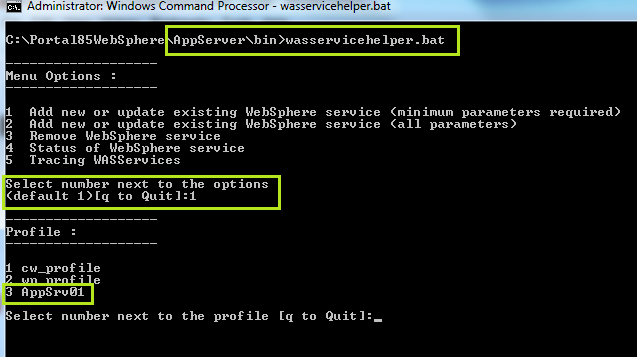
I already have one WAS server instance and this utility will recognizes for profiles invoked from Appserver directory. I select 3 here for AppSrv01 instance.
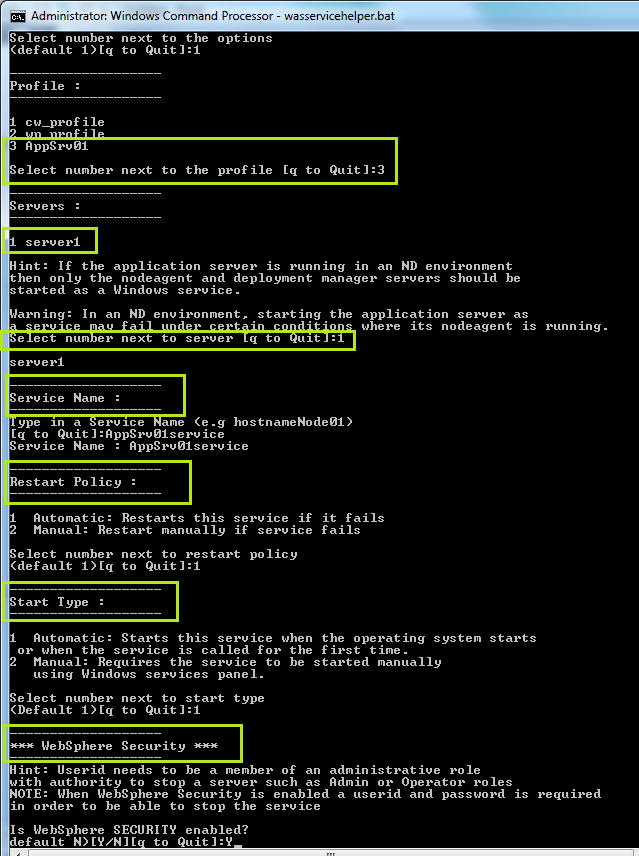
2. Select instance name and here I have used server1. Provide Service name so that windows service can log an entry for the same. Restart Policy and Startup Type can be made Automatic as this is the main intention of making the servers started when windows starts. Provide User id and password of the server instance
3. Provide logon user details along with WAS profile user id and password. Check the Execute command and then provide Y to proceed for WAS Service creation. Once done it will create a WAS Server Instance Service in Windows Operating System Services.
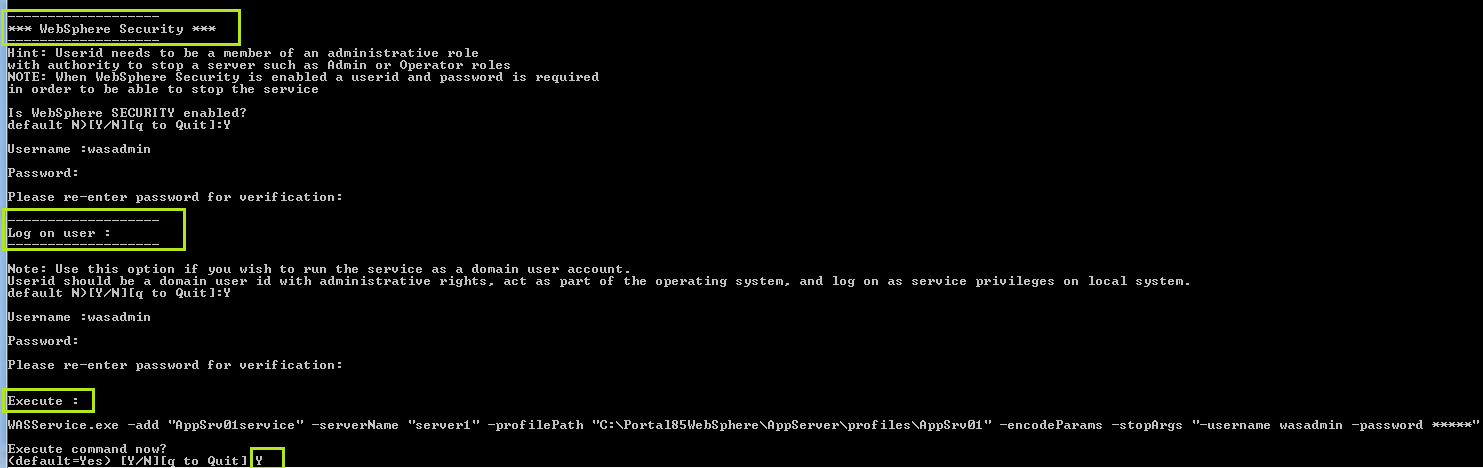
Once this command gets executed, we can view the service being created in Windows.
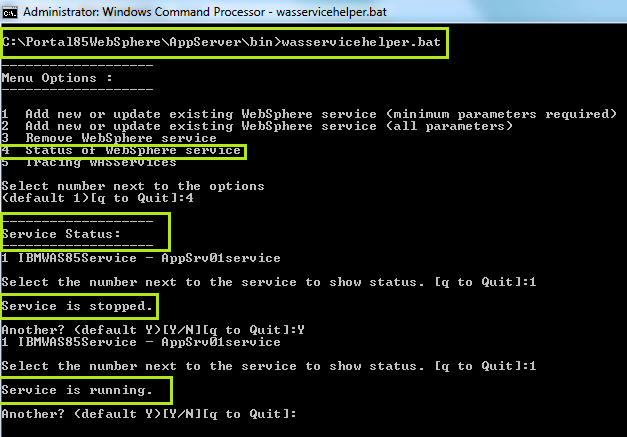
Check the command again for the status of the service using below screenshot. (i initially stopped the service and then started it again to verify the commands)
WASServiceHelper utility Link from IBM Knowledge Center
WASService command usage from IBM Knowledge Center