Websphere Portal server v8.5 CF09 Update
Websphere Portal server v8.5 CF09 Update Process is mentioned below for reference.
As simple steps, Portal server cumulative fix installation takes place in two ways,
- Product Update
- Profile Update
Please refer to Lotus WIKI link for standalone and cluster setup before updating the fix.
Product Update
1. Download Websphere Portal server v8.5 Cumulative Fixpack 09 from here. (its around 1.7 GB)
2. Open IBM Installation Manager as a Administrator in windows.
3. Extract the downloaded file to any folder and then point the repository.config file to IBM Installation Manager.

4. Click on Update and select Websphere Portal Server Product.
5. Click on Next, Next until you get Update screen. Below screens for reference. Make sure there are no running Java processes in your system.
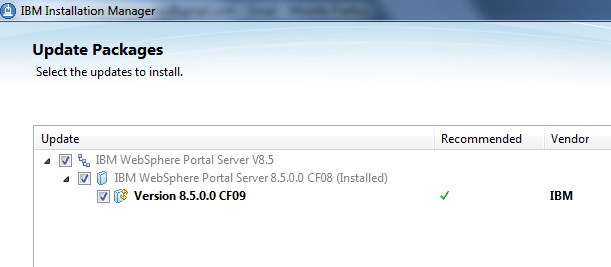

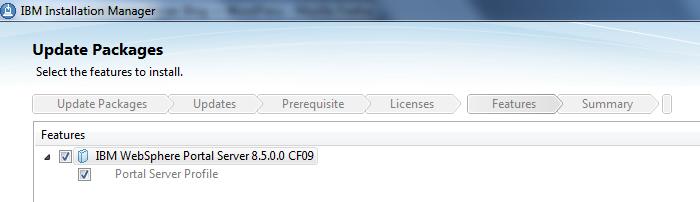
6. Click on Update to proceed.
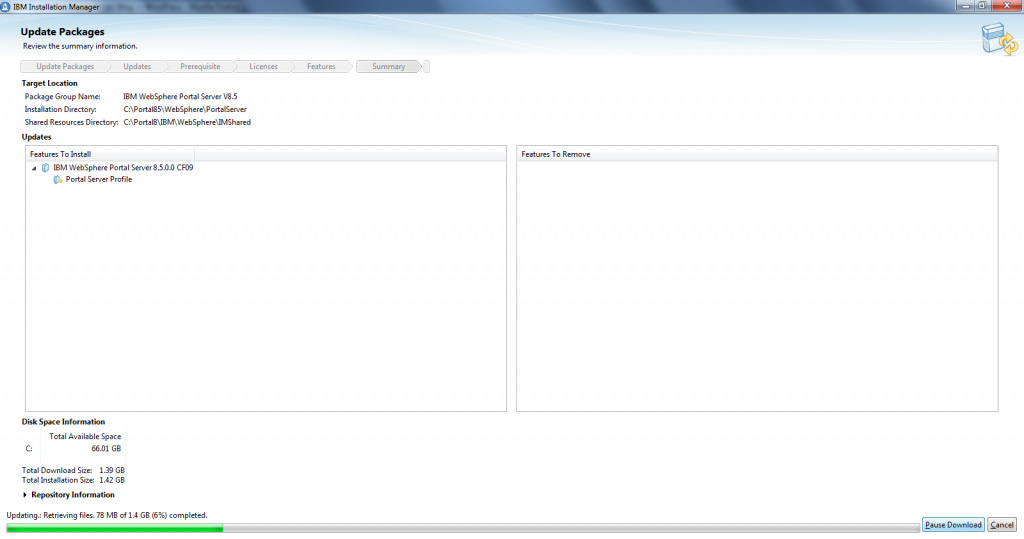
7. Below screen will be displayed after Websphere Portal server v8.5 CF09 Update completes successfully.
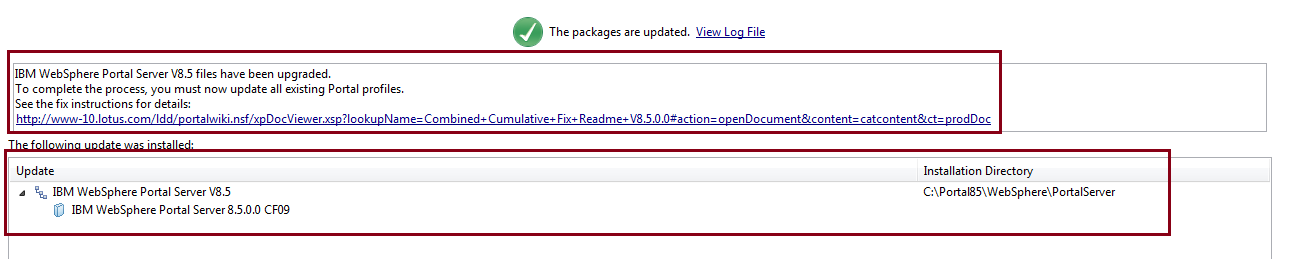
After product update completes, we need to start updating the Portal server profile. Please note that only Product installation is completed and not the profile. So additional steps mentioned in the Fixpack Installation guide needs to be followed. applyCF is the command that needs to be used here for updating the profile.
Profile update
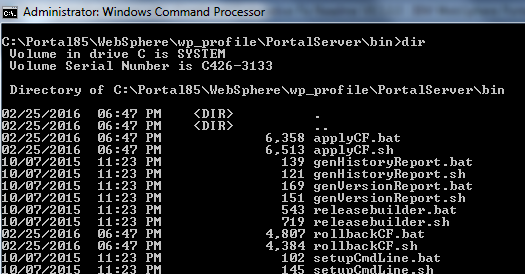
Navigate to <profile_root>\PortalServer\bin folder and then issue the below command. (Make sure that Command Prompt is started using Administrator access)
applyCF.bat -DPortalAdminPwd=<password> -DWasPassword=<password>
Below screenshots for reference.

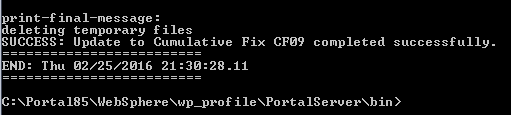
Successful completion message as shown below,
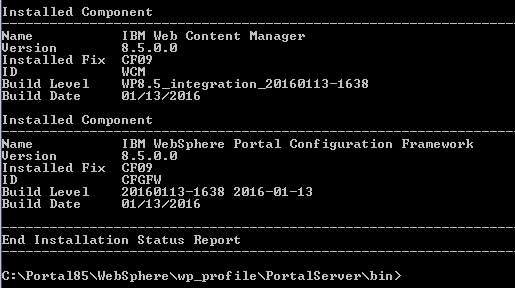
Version information after completing the upgrade.